
Tutorial: Live bidding on Auctionmobility
Learn how to participate in our auctions live and place advance bids here. Once the auction is open for bidding, you can view the auction lots online in high-quality detail and place advance bids through emporium-numismatics.auctionmobility.com. On auction days, you can watch the auctioneer via video stream on Auctionmobility and follow along as the gavel falls on your desired lot!
To ensure you join the auction in time for the lots you are interested in, please check our schedule. You can find this in our catalog as well as here online. We also emphasize that by participating as a bidder in our auction, you agree to accept the auction terms and conditions as binding.
Below, we provide a step-by-step guide on how to bid online: from registering as a bidder to winning a lot.
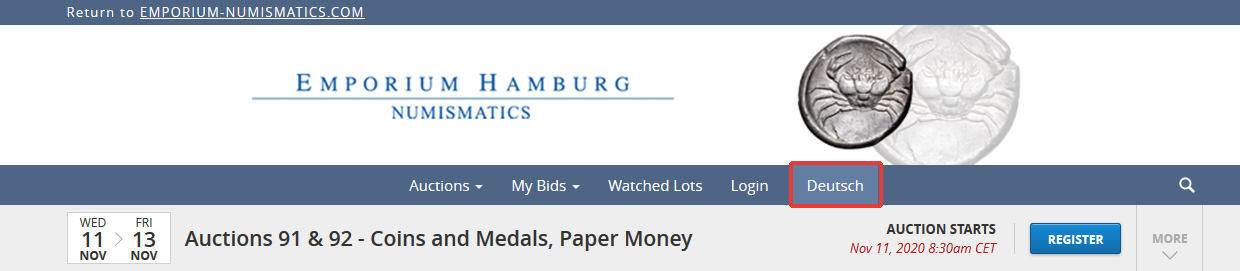
You can choose between English or German language options. Please note that lots are described in German only.
1. Register as a member on Auctionmobility
We recommend that you register in advance as a member and as a bidder for the respective auction on Auctionmobility, so you can participate without stress (at least 24 hours before the auction begins). You must register as a bidder for each auction separately. Registrations for past auctions are not valid.
Note: You cannot log in to the online auction portal Auctionmobility using the credentials from emporium-numismatics.com or muenzkurier.de.

Login on Auctionmobility.
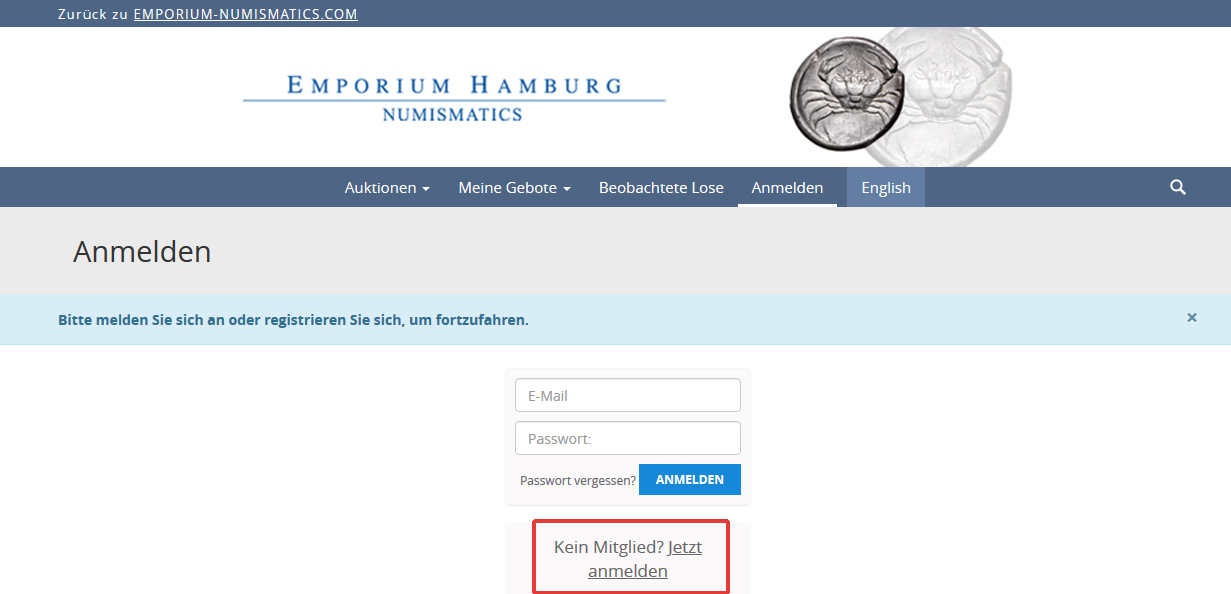
If you are not yet a member on Auctionmobility, click on “Create Account”.
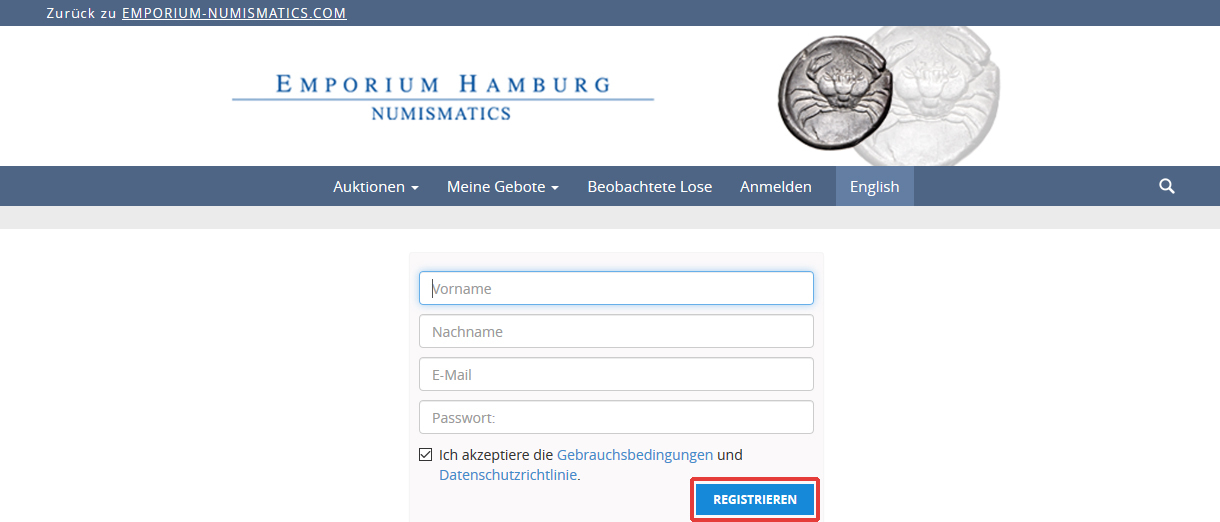
Enter your name, email, and desired password (at least 6 characters), accept the terms of use and privacy policy, and click “Register.” You have now successfully signed up with Auctionmobility. In the next step, you will register for the specific auction.
2. Register as a bidder on Auctionmobility
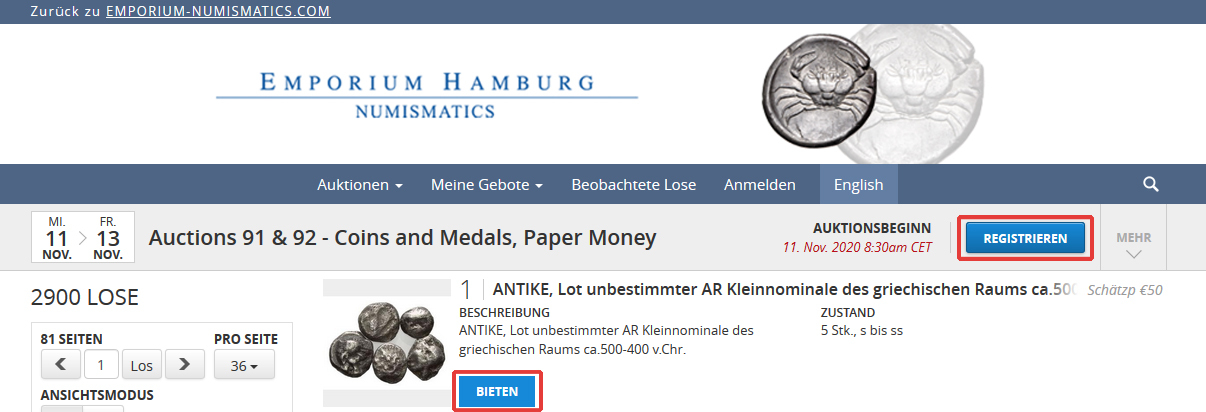
Once you have signed up as a member, you can register as a bidder for the auction. This can be done in two ways: Click on “Register” or on “Place Bid.”
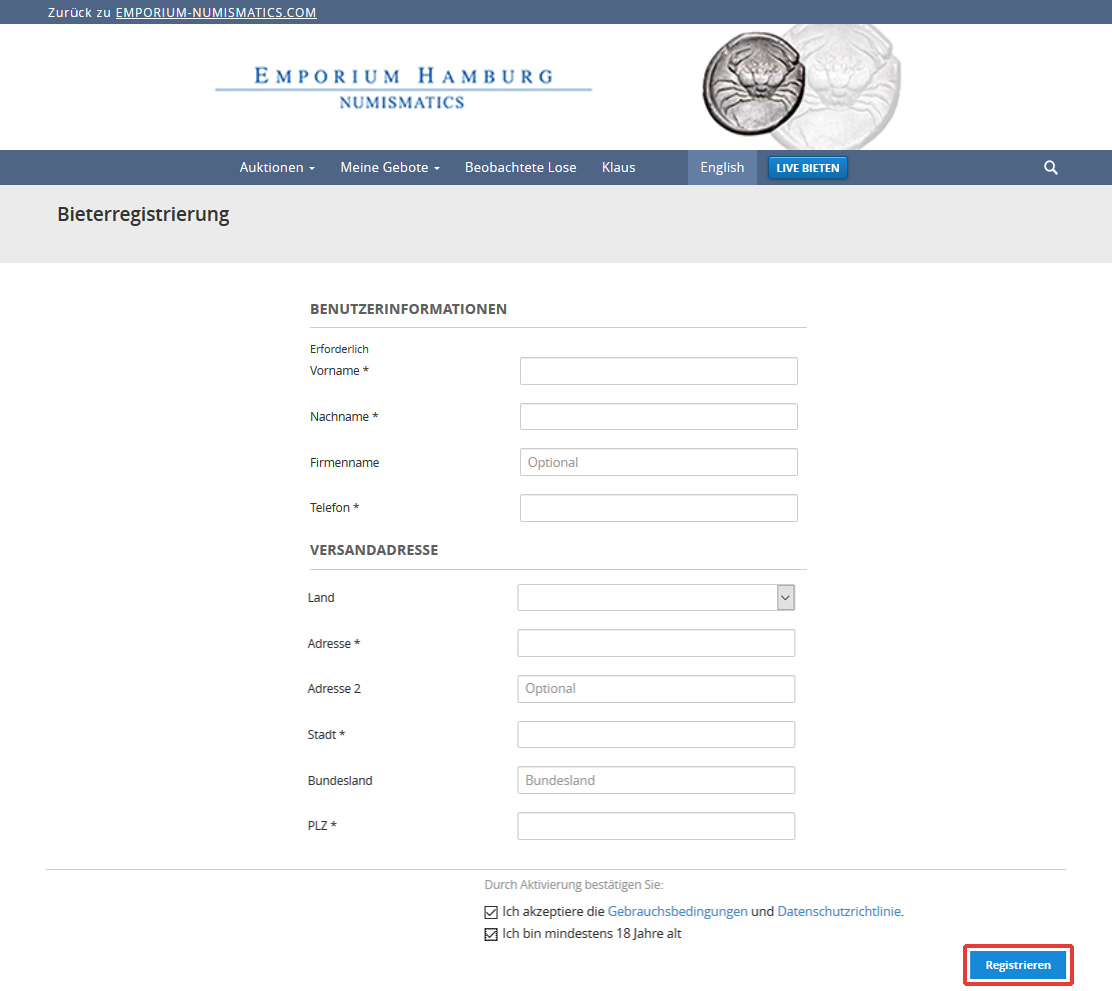
A window will appear with the required information. After filling in the necessary details, click “Register.” Following this, you will receive a confirmation email from Auctionmobility with your registration confirmation and bidder number. You are now registered for the current auction!
3. Place pre-bids
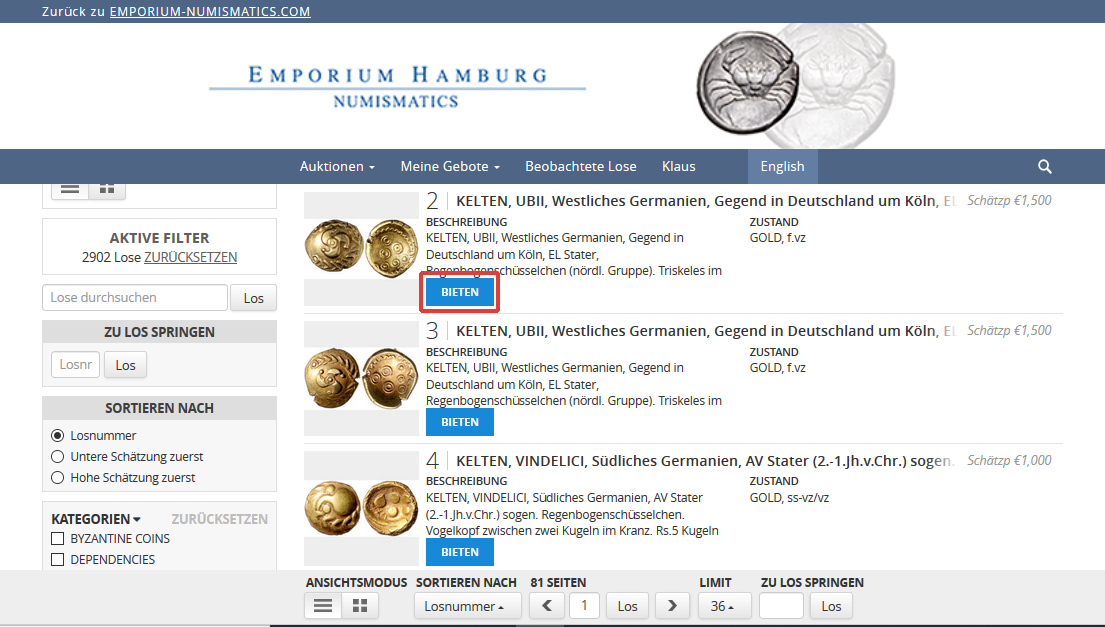
Select the lot you wish to bid on and click “Place Bid.”
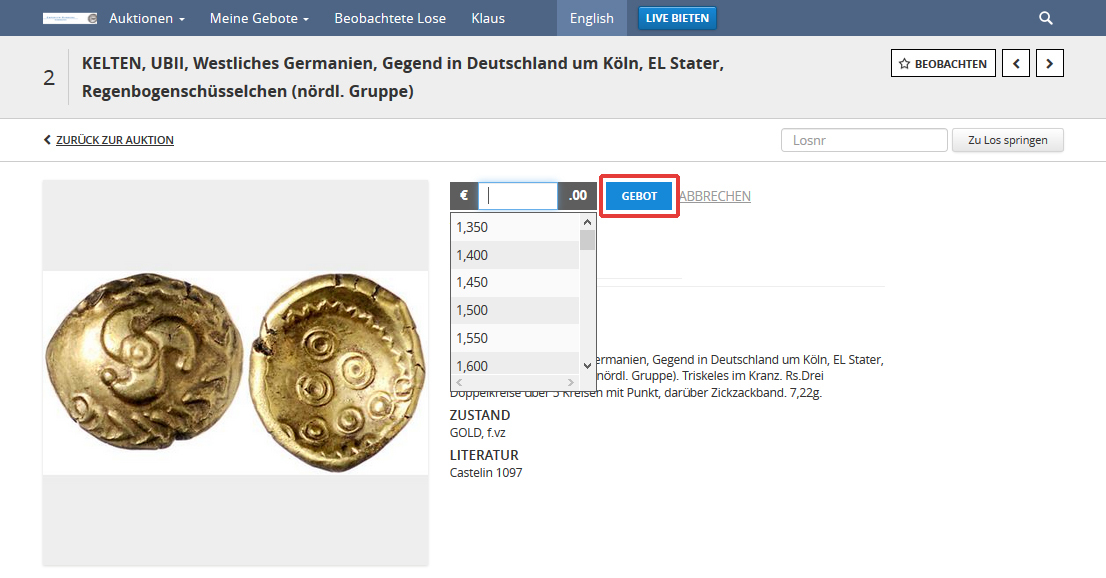
The lot you have chosen will now open, and you can place your advance bid. Click “Submit Bid” again to enter your bid. Our auction follows bidding increments, so you can choose one of the suggested bidding steps. If your desired bid amount is not listed, you can manually enter it. Please ensure to adhere to the bidding increments. Click “Submit Bid,” and your advance bid will be submitted.
4. Live bidding
Once the auction begins, you can participate in live bidding. You can follow the countdown on Auctionmobility. By clicking the “Live Bidding” button, you can see which lot is currently being auctioned.

By clicking the “Live Bidding” button, you can see which lot is currently being called.
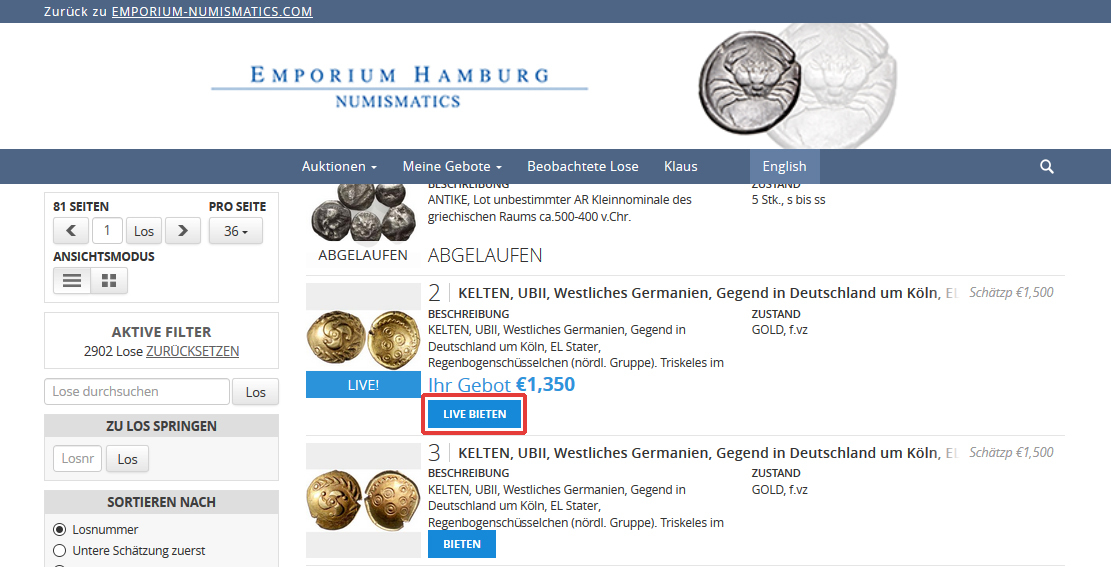
If you wish to bid live, click on “Place Bid.”
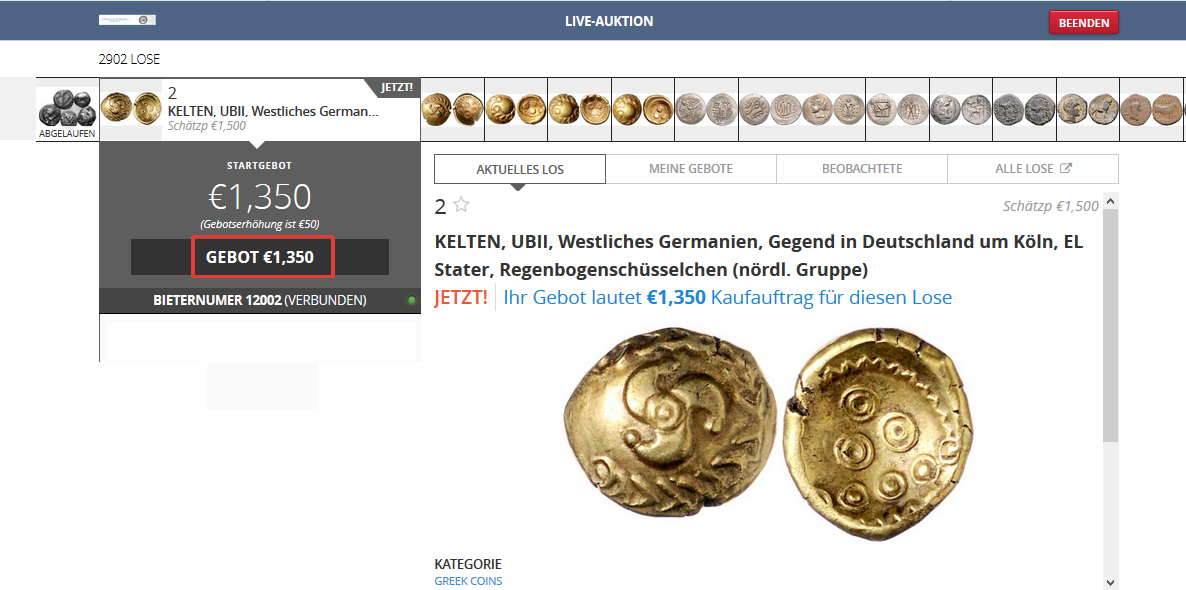
The lot appears in a new window, showing the current highest bid. Below, the button indicates the bid needed to exceed the current highest bid. To place your bid, click on ” Place Bid.” The example above shows a lot starting at its reserve price with no current bids.
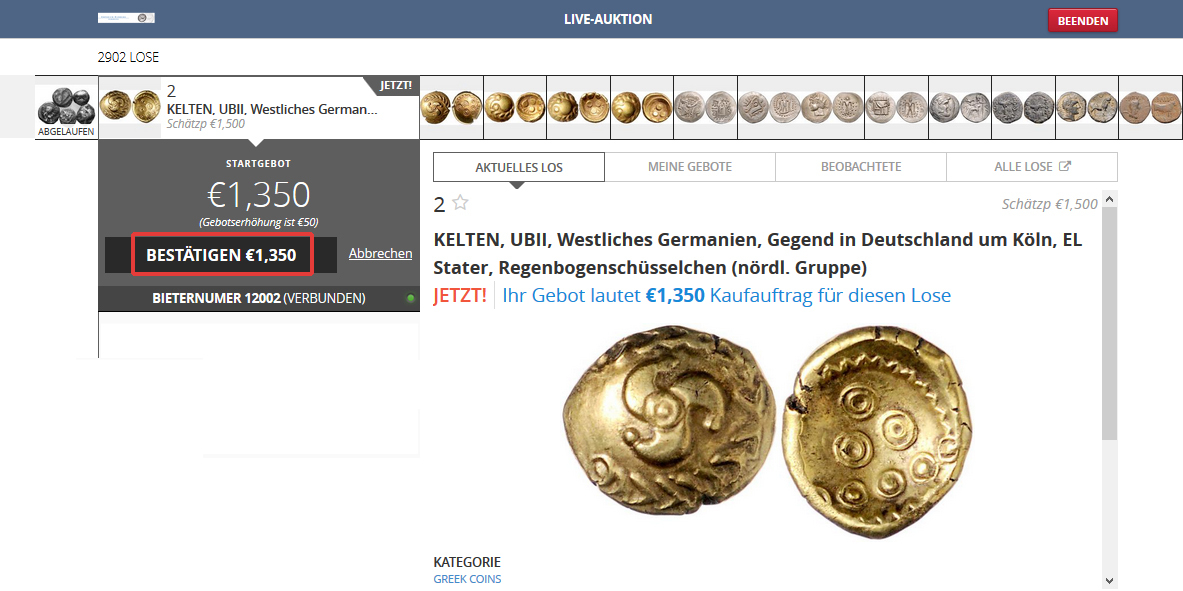
To ensure your bid is registered, it’s important to click the “Submit Bid” button after entering your bid amount. Once you have entered the highest bid, it will show “You win.” If you have been outbid, it will show “You have been outbid.” To continue bidding, simply click the “Bid” and “Confirm” buttons again. During the auction, you can also view other lots visible in the bar above and will then be redirected to them. The auction of the currently called lot will continue to be monitored live.
5. Additional features
Auctionmobility provides numerous features to support you during the auction:
- Through the “My Bids” button, you can view your bids placed so far and check the current bidding status.
- Keep an eye on lots that interest you! To do this, view the desired lot, click on the star symbol “Watch,” and the lot will be added to your “Watched Lots” list.
- Jump to your lot! By entering the desired lot number, you can directly access your desired lot using the “Jump to Lot” feature.
- Use the “Categories” section to narrow down your search and display only your areas of interest.
If you have any questions, the numismatics team is here to assist you!